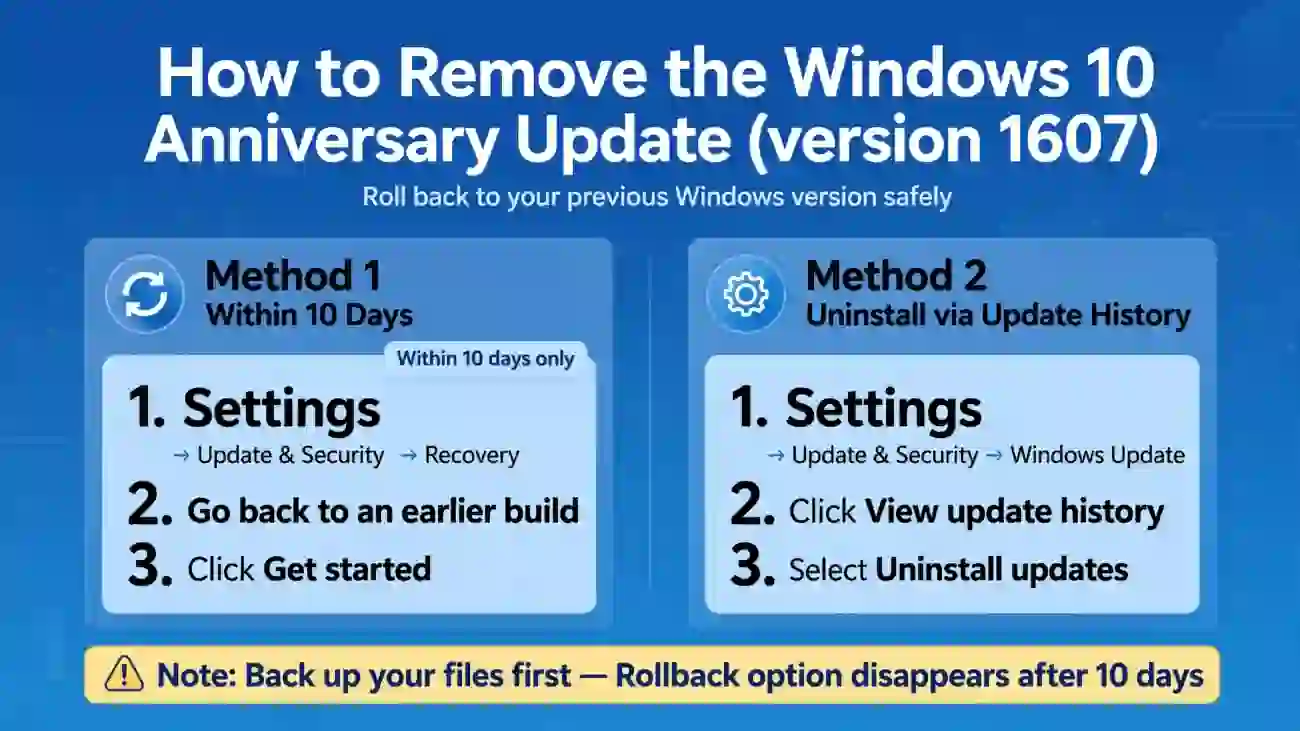
To remove a Windows update, open Settings > Update & Security > Recovery and select Go back if you recently upgraded and the option is available.
To remove a regular update, open Windows Update > View update history > Uninstall updates. If Windows will not start, use Windows Recovery Environment. The exact steps depend on which update you installed.
Key Takeaways
- The Windows 10 Anniversary Update is version 1607, released on August 2, 2016.
 Microsoft Learn
 - You can usually roll back a recent Windows feature upgrade within 10 days, provided the required recovery files remain available. Microsoft Support
- Regular quality updates can often be removed through Update History or Windows Recovery.
- Back up important files before making major system changes.
- Windows 10 Home and Pro reached the end of standard support on October 14, 2025, so consider security risks before returning to an unsupported version. Microsoft Learn+1
What Is the Windows Anniversary Update?
The Windows Anniversary Update was a major update for Windows 10, officially known as version 1607. Microsoft released it on August 2, 2016. It introduced improvements to Windows features, security, the Start menu, Microsoft Edge, and other parts of the operating system.
Microsoft Learn
Some users search for how to remove this update because an upgrade caused software compatibility problems, unexpected errors, or performance issues.
However, the phrase can refer to two different things:
- Windows 10 Anniversary Update (version 1607): The major Windows release from 2016.
- A more recent Windows update: A feature or quality update installed on a computer more recently.
This difference matters because the Anniversary Update is now many years old. If you installed it in 2016, the normal rollback option will not still be available. If you recently installed another update, you may be able to remove that update instead.
Before You Remove a Windows Update
Take a few precautions before changing your Windows installation.
- Back up your files. Save important documents, photos, and other data to an external drive or trusted cloud storage.
- Identify the update. Open Update History and note the update name, version, or KB number.
- Check your recovery options. Confirm whether Windows offers a rollback or uninstall option.
- Save your recovery key if needed. If BitLocker device encryption is enabled, make sure you can access the recovery key before entering recovery tools.
- Understand the security risks. Removing a security update can expose your computer to vulnerabilities that the update was designed to fix.
If the problem affects only one application, check for an application update or compatibility fix first. Removing an entire Windows upgrade may be unnecessary.
How to Remove Windows Anniversary Update
Choose the method that matches your situation. If you recently upgraded to a new Windows version, start with Method 1. If you only want to remove a problematic monthly update, use Method 2.
Method 1: Roll Back to the Previous Windows Version
This method is appropriate when a recent feature upgrade caused problems and Windows still has the files needed to restore the previous installation.
Microsoft generally provides a 10-day rollback window after an upgrade. The option may disappear sooner if the recovery files are deleted or otherwise become unavailable.
Microsoft Support
Follow these steps:
- Press Windows + I to open Settings.
- Select Update & Security.
- Click Recovery in the left-hand menu.
- Find the section labeled Go back to the previous version of Windows.
- Select Get started if the option appears.
- Follow the on-screen instructions and choose a reason for returning to the earlier version.
- Review the warnings, then confirm the rollback.
- Keep your computer connected to power while Windows completes the process.
Your personal files are intended to remain in place, but applications and drivers installed after the upgrade, along with some settings changes, may be removed. Back up your data first.
Microsoft Support
Important: If your computer is running Windows 10 version 1607 from 2016, this method will not normally be available for returning to a pre-Anniversary Update installation.
Method 2: Uninstall a Recent Windows Update
Use this method if your computer began experiencing problems after a recent quality update, such as a monthly cumulative update.
On Windows 10, follow these steps:
- Click Start and open Settings.
- Select Update & Security.
- Open Windows Update.
- Select View update history.
- Click Uninstall updates.
- Find the update associated with the problem.
- Select it and click Uninstall, if that option is available.
- Restart your computer if prompted.
These steps follow Microsoft’s guidance for removing an installed Windows update. Some updates cannot be uninstalled.
Microsoft Support
Check the update’s KB number before removing it. This helps you avoid uninstalling a different update by mistake.
Also, do not assume that uninstalling a monthly update will return Windows to the previous major version. A quality update and a feature upgrade are different types of changes.
Method 3: Remove an Update Through Windows Recovery
If Windows will not start normally after an update, you may be able to remove it through Windows Recovery Environment (Windows RE).
First, enter Windows Recovery Environment using an available recovery option. If you can reach the sign-in screen, hold Shift while selecting Power > Restart. If Windows cannot start, its automatic recovery process may open Windows RE after repeated startup failures.
Once you reach the recovery menu:
- Select Troubleshoot.
- Choose Advanced options.
- Select Uninstall Updates.
- Choose the available option for uninstalling the latest quality update or feature update.
- Follow the instructions to complete the process.
The available choices depend on your Windows version and the updates installed.
Microsoft Support
If prompted for a BitLocker recovery key, retrieve it from your saved recovery information before proceeding. Do not repeatedly force your computer to shut down if another recovery method is available.
What If the Go Back Option Is Missing?
If you cannot find the Go back option, it does not necessarily mean something is wrong with your computer.
Windows may remove the option when the rollback period expires, when the previous installation files are deleted, or when the required recovery data is unavailable. Microsoft explains that the previous-version option is available only for a limited time after an upgrade.
Microsoft Support
Try these alternatives:
- Uninstall a recent quality update: Open Update History and check whether the problematic update appears under Uninstall updates.
- Use Windows Recovery Environment: If Windows cannot start normally, try Troubleshoot > Advanced options > Uninstall Updates.
- Use System Restore: If you created a restore point before the problem began, System Restore may help return system files and settings to an earlier state. It is not a guaranteed replacement for uninstalling a feature update.
- Repair Windows: If the problem continues, use an appropriate Windows repair method or consult Microsoft’s recovery guidance.
Avoid deleting Windows system folders manually to force a rollback. Removing files without understanding their purpose can make Windows unstable or prevent it from starting.
Can You Still Uninstall Windows 10 Version 1607?
In most cases, you cannot use the normal rollback feature to remove Windows 10 version 1607 today.
Version 1607 was released in 2016, and the standard rollback period lasts only a short time after an upgrade. If your computer still runs version 1607, you would generally need a compatible recovery image, installation media, or a backup created before the update to return to an earlier installation.
Microsoft Support
+1
Before attempting a clean installation, confirm that you have:
- A complete backup of your personal files.
- The correct Windows edition and a valid activation method.
- Drivers for your computer’s hardware.
- Installation media from a trustworthy source.
- A plan to restore your applications and files.
A clean installation can remove personal files, installed programs, and settings from the target drive. It should not be your first troubleshooting step if a simpler update removal or repair can solve the problem.
There is another important consideration: Windows 10 Home and Pro reached the end of standard support on October 14, 2025. Microsoft recommends moving to a supported Windows version or using an applicable Extended Security Updates option. Returning to an old Windows release may leave your computer exposed to security problems.
Microsoft Support
+1
Common Problems After Removing a Windows Update
Removing an update does not always fix the original problem. Here are some common situations and what to try next.
| Problem | What to try |
|---|---|
| Windows still runs slowly | Check startup apps, available storage, and resource usage. |
| A program no longer works | Install a compatible version of the program or check its support documentation. |
| Windows will not boot | Use Windows Recovery Environment and consider Startup Repair. |
| The uninstall option is unavailable | Check whether the update supports removal or use another recovery method. |
| The same update returns | Review Windows Update settings and Microsoft’s guidance for the specific update. |
| You lost files or settings | Check your backup and available recovery options before making further changes. |
If you identify a particular KB update as the cause, check Microsoft’s support page for that update. It may document known issues, workarounds, or a replacement update.
Remember that removing an update can also remove important fixes. Avoid leaving a security update uninstalled indefinitely just because it temporarily resolves a problem.
Frequently Asked Questions
Can I uninstall a Windows update after 10 days?
You may still be able to uninstall a regular quality update after 10 days. The 10-day limit generally applies to rolling back a major Windows version upgrade, not every individual update. For a feature upgrade, the Go back option usually disappears when the rollback period expires or the required files become unavailable.
Microsoft Support
+1
Will uninstalling a Windows update delete my files?
Removing a regular Windows update generally does not target your personal files, but you should still create a backup first. Rolling back to a previous Windows version is designed to preserve personal files, although apps, drivers, and settings changes made after the upgrade may be removed. A clean installation is different and can erase data.
Microsoft Support
+1
Why can’t I uninstall a Windows update?
Some updates cannot be uninstalled. Others may no longer be removable because the rollback files are missing or the update is part of a servicing component that Windows does not allow you to remove through the normal interface. Check the update’s documentation and use supported recovery options rather than deleting system files manually.
Microsoft Support
Is it safe to remove a Windows security update?
It can be useful as a temporary troubleshooting step when a security update causes a serious issue, but removing it may expose your computer to known vulnerabilities. First check for a Microsoft-documented workaround or replacement update. If removal is necessary, limit the time your system remains without the protection and move to a supported, secure configuration as soon as possible.
Microsoft Support
+1
Final Thoughts
Knowing how to remove Windows Anniversary Update starts with identifying which update caused the problem.
If you recently installed a major Windows upgrade, check Settings > Update & Security > Recovery for the Go back option.
If a regular update caused errors, use Update History or Windows Recovery to see whether it can be uninstalled.
If you are trying to remove the original Windows 10 Anniversary Update from 2016, the normal rollback option is no longer a practical solution. You may need an older backup or compatible installation media instead.
Always back up your files before making major changes, and consider security carefully before returning to an older Windows version.