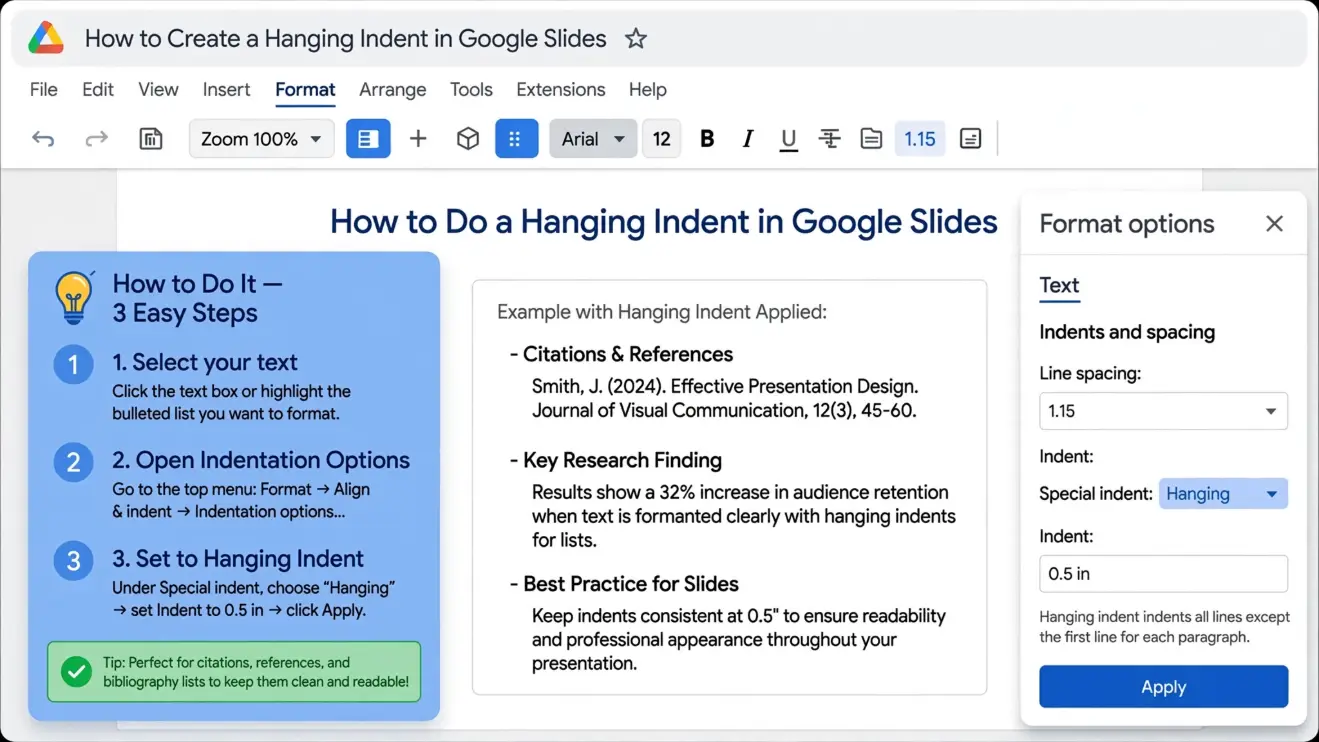
To do a hanging indent on Google Slides, select the text, click Format → Format options, open Text fitting, and find Special indent. Choose Hanging, then adjust the By value to control the indentation. Google also lets you create the effect manually with the ruler.
Key Takeaways
- Google Slides has a built-in Hanging indentation option.
- The quickest method is Format → Format options → Text fitting → Special indent → Hanging.
- A hanging indent keeps the first line at the left margin and moves the following lines inward.
- A 0.5-inch hanging indent is commonly used for academic reference formatting.
- You can also use the ruler when you want more visual control.
What Is a Hanging Indent in Google Slides?
A hanging indent is a paragraph format where the first line stays at the left margin while every line after it moves slightly to the right.
You will often see this format on reference, bibliography, and Works Cited slides. It helps readers quickly identify where one citation begins while keeping longer entries neat and easy to scan.
For example, a reference without a hanging indent may wrap like this:
Smith, J. (2025). Understanding digital learning and
presentation design. Academic Press.
With a hanging indent, the first line remains at the margin while the second line moves inward:
Smith, J. (2025). Understanding digital learning and
presentation design. Academic Press.
The result is easier to read, especially when several citations appear on the same slide.
Hanging Indent vs. First-Line Indent
These two formats are opposites:
| Indent type | First line | Following lines |
| No indent | At margin | At margin |
| First-line indent | Indented | At margin |
| Hanging indent | At margin | Indented |
This difference matters when you are formatting academic references. If you accidentally choose a first-line indent, your citation will look reversed.
How to Do a Hanging Indent on Google Slides
The easiest method is to use Google Slides’ built-in formatting controls. Google currently lists the hanging-indent setting under Format options → Text fitting.
Step 1: Select Your Text
Open your presentation in Google Slides and go to the slide containing the text.
Click inside the text box, then highlight the paragraph or paragraphs you want to format.
If you have several references in the same text box, you can select all of them and apply the hanging indent at once.
Step 2: Open Format Options
With your text selected, click Format in the top menu.
Then choose Format options.
A sidebar will appear on the right side of the screen.
Step 3: Open Text Fitting
In the Format options sidebar, click Text fitting.
Look for the Special indent setting.
Google Slides provides a Hanging option in this section.
Step 4: Select Hanging
Click the Special indent menu and choose Hanging.
Your selected paragraph should immediately change so that its first line remains at the original position while the lines underneath move inward.
Step 5: Adjust the Indent Amount
Look for the By value next to the hanging-indent setting.
Increase or decrease this value until the text looks right on your slide. Google specifically provides this control so you can adjust the size of the hanging indent.
For academic references, 0.5 inch is a common setting. However, always follow the formatting instructions provided by your teacher, school, publisher, or organization.
How to Make a 0.5-Inch Hanging Indent
If your assignment calls for a 0.5-inch hanging indent, select your reference text and use the built-in hanging-indent setting.
Follow this path:
Format → Format options → Text fitting → Special indent → Hanging
Then set By to 0.5 inches.
This creates the familiar reference-list appearance where the author’s name or first part of the citation begins at the margin and the remaining lines move 0.5 inches inward.
APA reference lists, for example, commonly use a 0.5-inch hanging indent. If your instructor requires APA, MLA, Chicago, or another style, check the specific assignment requirements because indentation is only one part of complete citation formatting. Current search results also consistently identify hanging indents as useful for academic references and Works Cited slides.
How to Create a Hanging Indent With the Ruler
Some people prefer using the ruler because it gives them visual control over the text.
First, make sure the ruler is visible. In Google Slides, go to View → Show ruler. Google confirms this is the current way to show the ruler.
Then:
- Click inside the text box.
- Highlight the paragraph you want to format.
- Locate the indent markers on the ruler.
- Adjust the marker controlling the lines after the first line.
- Move the first-line marker back toward the left margin.
- Fine-tune the positions until the first line sits farther left than the lines underneath.
This method is helpful when you want to visually match the indentation to other elements on your slide.
The ruler can be especially useful when the built-in setting does not give you the exact visual placement you want. Google Slides supports rulers specifically for positioning and aligning content on the canvas.
How to Use Hanging Indents for Citations and References
Hanging indents are most useful when your slide contains information that naturally wraps across multiple lines.
APA References
If you are creating an APA reference slide, a hanging indent helps separate each reference entry.
For example:
Smith, J. A. (2024). Digital learning in modern classrooms. Educational Press.
The first line begins at the margin, while additional lines move inward.
If your reference list is long, consider splitting the references across two slides rather than making the font too small. A readable presentation is more useful than squeezing every citation onto one slide.
MLA Works Cited
MLA Works Cited entries can also benefit from hanging indentation. Apply the same Google Slides setting and then follow the other MLA formatting requirements for your assignment.
Remember that indentation alone does not make a citation MLA-compliant. Author names, titles, publication information, dates, punctuation, spacing, and other details also matter.
Bibliography and Source Slides
Hanging indents are also useful for:
- Bibliographies
- Research presentations
- Source lists
- Image credits
- Data-source slides
- Reading lists
- Glossaries
- Long bullet points
The basic principle remains the same: keep the beginning of each entry easy to find and move wrapped lines inward.
Common Problems and How to Fix Them
The entire paragraph moves instead of only the later lines
Make sure you select Hanging rather than a regular left or first-line indent.
A hanging indent specifically keeps the first line at the margin and indents the lines that follow.
The indent looks too large
Return to Format → Format options → Text fitting and reduce the By value.
Small adjustments can make a large difference on a presentation slide.
Your text does not appear to change
A hanging indent is easiest to see when the paragraph actually wraps onto two or more lines.
If the entire citation fits on one line, there may be no visible difference because there are no additional lines to move inward.
The ruler is difficult to use
Zoom in and move the ruler markers slowly. The markers can be easy to confuse, especially when they are close together.
If you want a precise numerical setting instead, use the Special indent → Hanging option rather than manually moving the ruler.
Your references look crowded
Do not keep shrinking the font just to fit more citations onto one slide.
Instead, consider:
- Splitting references across multiple slides
- Shortening unnecessary text where the citation style allows it
- Increasing the text box width
- Adjusting line spacing
- Using a readable font size
A clean references slide should be easy to read from a distance.
Frequently Asked Questions
Does Google Slides have a hanging indent option?
Yes. Google Slides currently provides a built-in Hanging option. Select your text, choose Format → Format options → Text fitting, and select Hanging under Special indent. You can then adjust the indentation amount using the By setting.
How do I indent the second line in Google Slides?
Select the paragraph and apply a hanging indent through Format → Format options → Text fitting → Special indent → Hanging. If the paragraph contains multiple wrapped lines, the lines after the first will move inward together.
Can I apply a hanging indent to multiple references?
Yes. Highlight multiple paragraphs or reference entries in the same text box before applying the hanging-indent setting. This is much faster than formatting each citation individually.
How do I remove a hanging indent?
Select the affected text, open Format options → Text fitting, and change the Special indent setting away from Hanging. You can then adjust the text back to the normal indentation you want.
Does the hanging-indent method work on Mac?
Yes. The Google Slides formatting method is based on the Slides interface rather than a Windows-only command. On a Mac, select the text and use Format → Format options → Text fitting → Special indent → Hanging.
Conclusion
If you only remember one method, use the built-in Google Slides option:
Select text → Format → Format options → Text fitting → Special indent → Hanging.
That is the clearest approach because you can control the indent amount without manually inserting spaces or formatting each wrapped line.
For reference slides, hanging indents make long citations easier to scan. For other presentation text, use them only when they improve readability. A simple layout is often better than adding indentation where it does not serve a purpose.
Most importantly, avoid using repeated spaces to create a hanging indent. Spaces can shift when you edit the text, change the font, resize the text box, or adjust the slide layout. Using Google Slides’ formatting controls gives you a cleaner and more consistent result.

Margaret Mitchell is the expert behind coupleanniversary. Transforming ordinary anniversaries into unforgettable memories. With unmatched insight in love, relationships, and celebration ideas, she guides couples to make every milestone special.